The Complete Guide to Google Search Console (2027)
Set up and use Google Search Console to monitor SEO performance, fix indexing issues, find keywords, and track visibility in AI Overviews and AI Mode.
Updated 17 min read
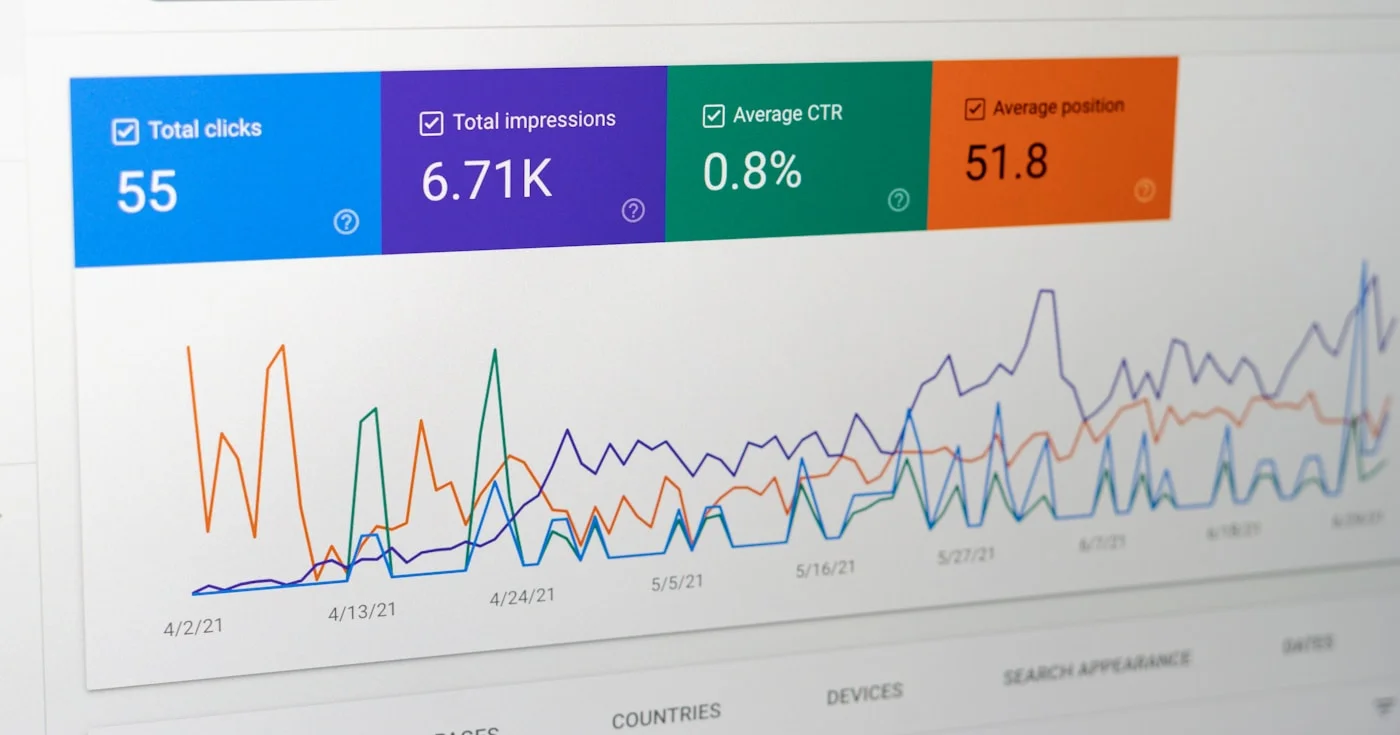

Set up and use Google Search Console to monitor SEO performance, fix indexing issues, find keywords, and track visibility in AI Overviews and AI Mode.
Google Search Console (GSC) is a free Google tool for monitoring how your site appears in search results, diagnosing technical issues, and tracking clicks and impressions. It shows marketing teams how Google crawls, indexes, and serves their site, straight from Google.
Google renamed it from Google Webmaster Tools in 2015. Since August 31, 2026, every site also gets a dedicated generative AI performance report that shows impressions from AI Overviews and AI Mode.
This guide walks through setup, the reports worth checking, keyword research, technical troubleshooting, and the new AI reporting.
Google Search Console is a free website monitoring platform built by Google. It shows you how Google crawls, indexes, and serves your pages. Third-party SEO tools estimate this from their own crawls; GSC reports it from Google's side.
Marketing teams use GSC to track organic traffic trends, find keywords their pages rank for, identify technical problems blocking visibility, and monitor how their content appears inside AI-generated search experiences.
These two tools are complementary, not interchangeable.
Tool | What It Measures |
|---|---|
Google Search Console | How Google finds, indexes, and displays your site in search results. What happens before the click. |
Google Analytics | How visitors behave on your site after they arrive. Sessions, conversions, bounce rate. |
You need both. GSC tells you why traffic is growing or declining in search. Analytics tells you what those visitors do once they arrive.
GSC reports on eight core areas of your site's search presence:
You need a Google account and access to your domain's DNS settings or website files.
Go to search.google.com/search-console and sign in. Click "Add Property" and choose between two property types.
Property Type | What It Covers | Best For |
|---|---|---|
Domain | All subdomains and protocols (http, https, www, m., and so on) | Most sites: gives the complete picture |
URL Prefix | Only URLs that start with the exact prefix, including the protocol (e.g., | Tracking a specific section in isolation |
Use the Domain property in almost all cases. A URL Prefix property leaves out other subdomains and the other protocol, so on its own it gives you an incomplete dataset.
Verification proves to Google that you control the site before it shares your data.
For Domain property: DNS verification through your domain name provider is the only way to verify a Domain property. Copy the TXT record from GSC, add it to your DNS settings, and click "Verify." Google says a manually added record can take up to two or three days to start serving, so if verification fails, wait a day or two and try again.
For URL Prefix: You can verify with an HTML file upload, an HTML tag, a Google Analytics tracking code, a Google Tag Manager snippet, a Google Sites or Blogger account, or your domain name provider.
Once verified, go to Sitemaps in the left sidebar, enter your XML sitemap URL (usually yoursite.com/sitemap.xml), and click Submit. GSC will show a "Success" status when it processes the sitemap correctly.
Submitting a sitemap might speed up discovery of your pages. Google can find pages without one, but a sitemap gives it a list of the URLs you care about.
GSC has four permission types, with owners split into verified and delegated owners. If you're working with an agency or adding team members, set the right access level from the start.
Role | What They Can Do |
|---|---|
Verified Owner | Full control: data, settings, tools, user management |
Delegated Owner | Same as verified owner, granted access by a verified owner |
Full User | View all data, take some actions |
Restricted User | View most data, limited actions |
Associate | Can take certain actions for your site (for example, a linked Chrome Web Store account) but can't open your Search Console data |
Add users via Settings → Users and permissions → Add User.
The Performance report is the one you'll check most often. It shows how your site performs in Google Search across four metrics:
You can break down these metrics by Queries, Pages, Countries, Devices, Search appearance, and Dates. The search type filter switches between Web (text-based or multimodal), Image, Video, and News. The Queries tab is where keyword research happens directly in GSC.
In December 2025, Google added a weekly/monthly view to the Performance report chart. Switching from daily to weekly or monthly aggregation makes it easier to spot long-term trends without day-of-week fluctuations obscuring the picture.
How to use the Performance report for CTR optimization: Sort the Queries table by Impressions (high to low). Look for queries where your page ranks in positions 1-10 but CTR is under 2%. Those pages are visible but not compelling enough to click, and rewriting title tags and meta descriptions for those queries is often the fastest way to grow organic traffic without creating new content.
The URL Inspection tool lets you check the status of any specific page in Google's index. Type a URL into the search bar and GSC returns:
If you've published a new page or made significant updates, use "Request Indexing" to prompt Google to crawl it sooner. This doesn't guarantee indexing, and there is a daily limit on requests.
The Page Indexing report shows which pages on your site Google has and hasn't indexed. Non-indexed pages can't appear in search results, making this report critical for sites that have published content but aren't seeing it rank.
Common reasons pages don't get indexed:
Status | What It Means | Action |
|---|---|---|
Crawled - currently not indexed | Google crawled the page but did not index it | Common and not always a problem; for important pages, diagnose with URL Inspection |
Discovered - currently not indexed | Google found the page but hasn't crawled it yet, typically because crawling then could have overloaded the site | Wait, or request indexing for priority pages |
Duplicate without user-selected canonical | Google treats the page as a duplicate and chose another URL as canonical | Mark your preferred canonical if Google picked the wrong one |
Soft 404 | The page shows a "not found" style message but doesn't return a 404 status code | Return a real 404 for missing pages, or add content so the page isn't mistaken for one |
Blocked by robots.txt | A robots.txt rule stops Googlebot from crawling the page | Review your robots.txt file |
After fixing an issue, click "Validate Fix" to notify Google that the problem has been resolved. Validation typically takes up to about two weeks, and Google notifies you when it passes or fails.
Core Web Vitals are Google's user experience metrics. Google highly recommends good Core Web Vitals for success with Search and says they align with what its core ranking systems seek to reward. GSC's Core Web Vitals report groups your URLs as Poor, Need improvement, or Good.
Metric | What It Measures | Good Threshold |
|---|---|---|
LCP (Largest Contentful Paint) | How fast the main content loads | 2.5 seconds or less |
INP (Interaction to Next Paint) | How quickly the page responds to interactions | 200 ms or less |
CLS (Cumulative Layout Shift) | How stable the layout is as it loads | 0.1 or less |
INP replaced FID (First Input Delay) as a Core Web Vital in March 2024. The data comes from real Chrome users via the Chrome User Experience Report, not lab tests. The report uses the last 28 days of real-user data, so improvements take weeks to show.
Always check both mobile and desktop tabs separately.
The Sitemaps report shows the status of every sitemap you've submitted and how many pages Google discovered from each one.
Watch for two problem statuses:
A healthy sitemap with a "Success" status and a discovered page count close to your total published pages means Google is finding your content.
The Links report shows a sample of the external and internal links Google has found to your site, not a complete list.
External links section includes:
Internal links section shows how pages on your own site link to each other. Strong internal linking helps Googlebot navigate your site and distributes authority to pages that need it.
Review this report monthly to confirm that the pages you expect to earn links are the ones getting them.
Google issues a manual action when a human reviewer finds pages that don't comply with its spam policies. Affected pages or sites can be ranked lower or omitted from search results.
Open Manual Actions in the sidebar. "No issues detected" means you're clear. If an action is listed, fix every issue on every affected page, then select Request Review.
The Security Issues report flags hacking, malware, or other threats Google has detected on your site. Affected pages can show a warning label in search results or a warning page in the browser. Search Console emails you when Google finds new issues on your site.
The rich result status reports show which structured data Google could or couldn't read on your site, along with errors that prevent rich results. Rich results (review stars, breadcrumbs, product details in search listings) can make a listing stand out without changing your ranking position.
Structured data types Google still supports in Search include:
The full list is in Google's structured data search gallery. FAQ and How-to markup no longer earn rich results: Google stopped showing FAQ rich results on May 7, 2026 and retired How-to rich results earlier.
After fixing structured data errors, use Google's Rich Results Test to verify your markup before clicking "Validate Fix" in GSC.
Third-party tools estimate traffic and keywords from their own crawls. GSC shows the actual queries people used to find your site, which surfaces ranking opportunities that volume-based keyword tools often miss.
Since March 11, 2026, the branded queries filter is available to all eligible sites. It separates searches for your brand from non-branded discovery, but only on top-level properties with enough query volume.
Open the Performance report → Queries tab. Follow these steps to find your highest-value optimization targets:
Pages ranking in positions 5-20 with meaningful impressions are close to the first page or top 3. A content update, improved title tag, or additional internal links can push the page into a position where clicks increase significantly.
Click on any page in the Pages tab to see all the queries driving impressions to that specific URL. This reveals:
Use the Search appearance tab in the Performance report to see how many impressions come from rich result types. Image and video results sit under the search type filter instead, and Discover has its own report.
If a structured data type is generating impressions, you know it's working. If it's not appearing at all, check the rich result status reports for errors.
When organic traffic drops, GSC is the first place to investigate. Follow this sequence:
A URL migration is one of the highest-risk SEO events. GSC helps you verify it went correctly:
After fixing any issue flagged in GSC (indexing errors, Core Web Vitals failures, structured data problems), use the "Validate Fix" button in the relevant report. This tells Google to re-evaluate the affected pages. GSC will notify you whether the fix was confirmed or whether new errors were found.
AI Overviews and AI Mode now sit inside Google Search, and Google says AI Mode is built for queries that need further exploration, reasoning, or complex comparisons. GSC reports on both in two places.
Sites that appear in AI Overviews and AI Mode are counted in the Performance report within the "Web" search type, mixed in with the rest of your search traffic. Google adds that clicks from results pages with AI Overviews are higher quality, meaning visitors are more likely to spend more time on the site.
To see AI visibility on its own, open the Generative AI performance report. Google announced it on June 3, 2026 and rolled it out to all websites worldwide by August 31, 2026. It covers AI Overviews and AI Mode, with a separate version for Discover.
The report tracks one metric, impressions; clicks and CTR for that traffic stay in the main Performance report. You can group impressions by Pages, Countries, Dates, and Devices, and filter by Web: text-based or Web: multimodal search. If the report is missing, your site usually hasn't had enough impressions in generative AI features yet.
For marketing teams, the Pages view is the useful one. It shows which URLs Google already links from AI answers, so you can compare them with the pages that earn clicks in the main Performance report.
Google added an experimental natural language interface to the Performance report in December 2025, starting with a limited set of websites. Instead of manually building filters, you describe the analysis you want. Google's own examples:
The AI translates your request into the appropriate filters. It only works in the Performance report for Search results (not Discover or News). Always verify the filters it sets before analyzing the data, since the AI can occasionally misinterpret what you asked.
A URL Prefix property only tracks URLs that start with its exact prefix. It misses other subdomains like blog.yoursite.com and the other protocol (http:// vs https://). Start with a Domain property from day one.
This status means Google crawled the page but did not index it. Google calls it a common message that doesn't necessarily need attention, because it doesn't index every page it crawls. The mistake is ignoring it on pages that matter: run URL Inspection on those to rule out a technical block, then make the page clearly more useful than similar pages on your site.
Impressions generally count every time your page appeared on the current page of results, even if the user never scrolled to it. A page with 50,000 impressions and 100 clicks has a 0.2% CTR, so 99.8% of those impressions never became a visit. Impressions measure visibility and clicks measure traffic, which makes CTR the metric to act on.
GSC shows separate Core Web Vitals reports for mobile and desktop. Google uses the mobile version of a site's content for indexing and ranking, so a site that passes on desktop but fails on mobile is optimizing the wrong version. Check both every time.
Request Indexing puts a page into Google's indexing queue, but there is a daily limit on requests and a request doesn't guarantee indexing. Reserve it for new high-priority pages and significant content updates; for many new or updated pages, Google recommends submitting a sitemap with lastmod dates.
The Links report shows not just who links to you, but which pages earn the most links. If your homepage gets the vast majority of inbound links but your blog posts get almost none, internal linking and outreach priorities need to shift. Review the report monthly, not just after something goes wrong.
A Domain property combines every subdomain, so blog.yoursite.com and yoursite.com share one dataset. To watch each one on its own, add URL Prefix properties for the subdomains alongside the Domain property, or use a page filter in the Performance report.
Google Search Console is the most direct data source available for understanding how Google sees and ranks your site. It covers everything from indexing and crawling to Core Web Vitals, keyword performance, backlinks, and AI Overviews and AI Mode visibility.
Start with a Domain property, submit your sitemap, and make the Performance report part of your monthly reporting routine. Google itself suggests checking around once a month, and Search Console emails you when it finds new issues. If you're not checking GSC regularly, you're making SEO decisions without the data that only Google can provide.
For related reading, see our guides to technical SEO, Google Keyword Planner, and free SEO tools.

12 SMS and text marketing platforms compared by use case, with current pricing, per-message costs, seat limits and free trial details for each one.

The 12 best AI communication tools in 2027, organized by use case: team messaging, meeting intelligence, customer support, writing, coaching, and voice AI.